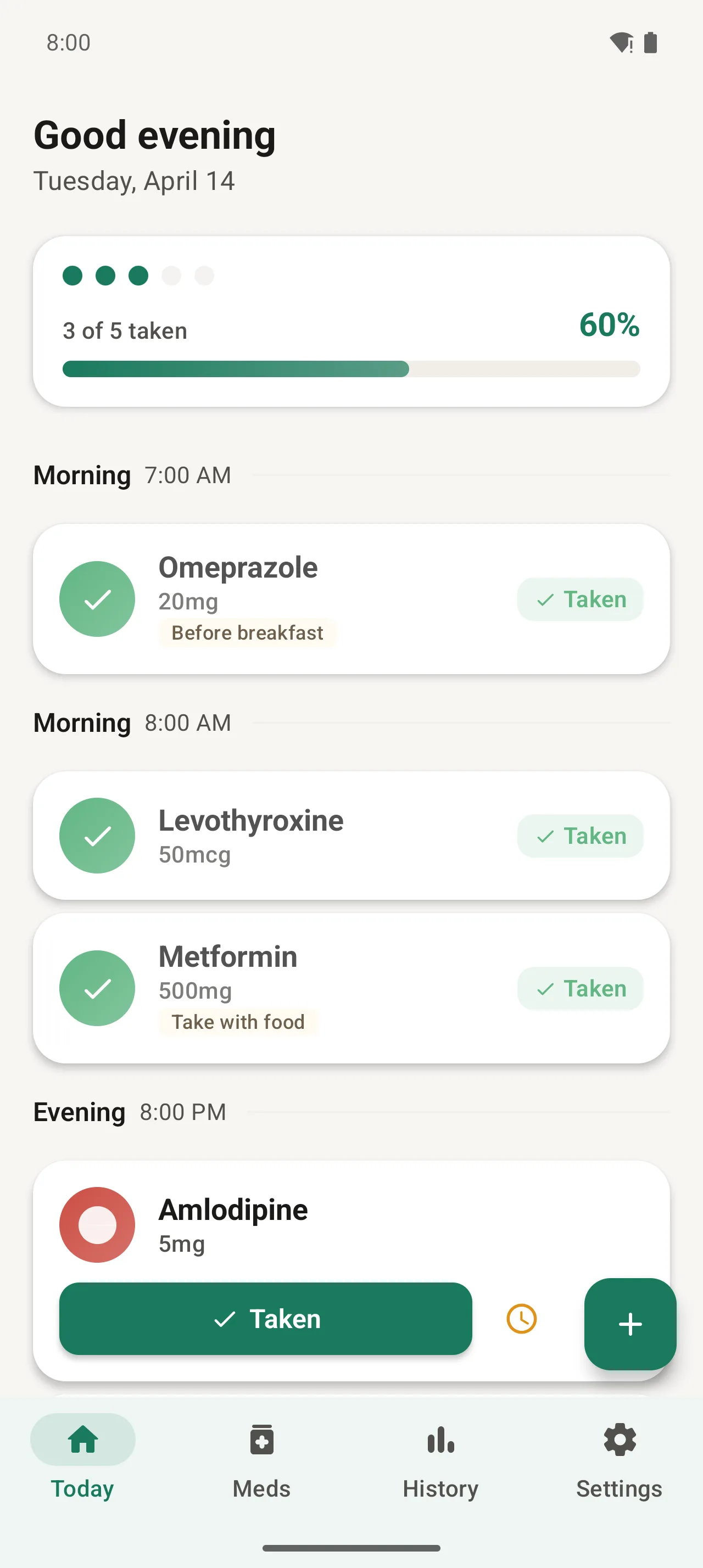
If you've ever forgotten a habit you meant to keep — or watched a parent forget their routine — you know reminders that get silenced don't help. This guide gets you to your first persistent reminder in about five minutes.
Step 1: Download PillDrops
Open Google Play and search for PillDrops, or grab it directly from our Play Store listing. The app is 30 MB and installs in seconds. iOS is coming Q3 2026.
Once installed, tap to open. PillDrops requests notification permission on first launch — tap Allow. This is what powers the dose alerts. Without it, no reminders.
Step 2: Pick your language
The first screen is a language picker. PillDrops ships with 12 languages: English, Arabic, Turkish, French, German, Spanish, Portuguese, Italian, Dutch, Polish, Russian, and Japanese. You can change this later in Settings.
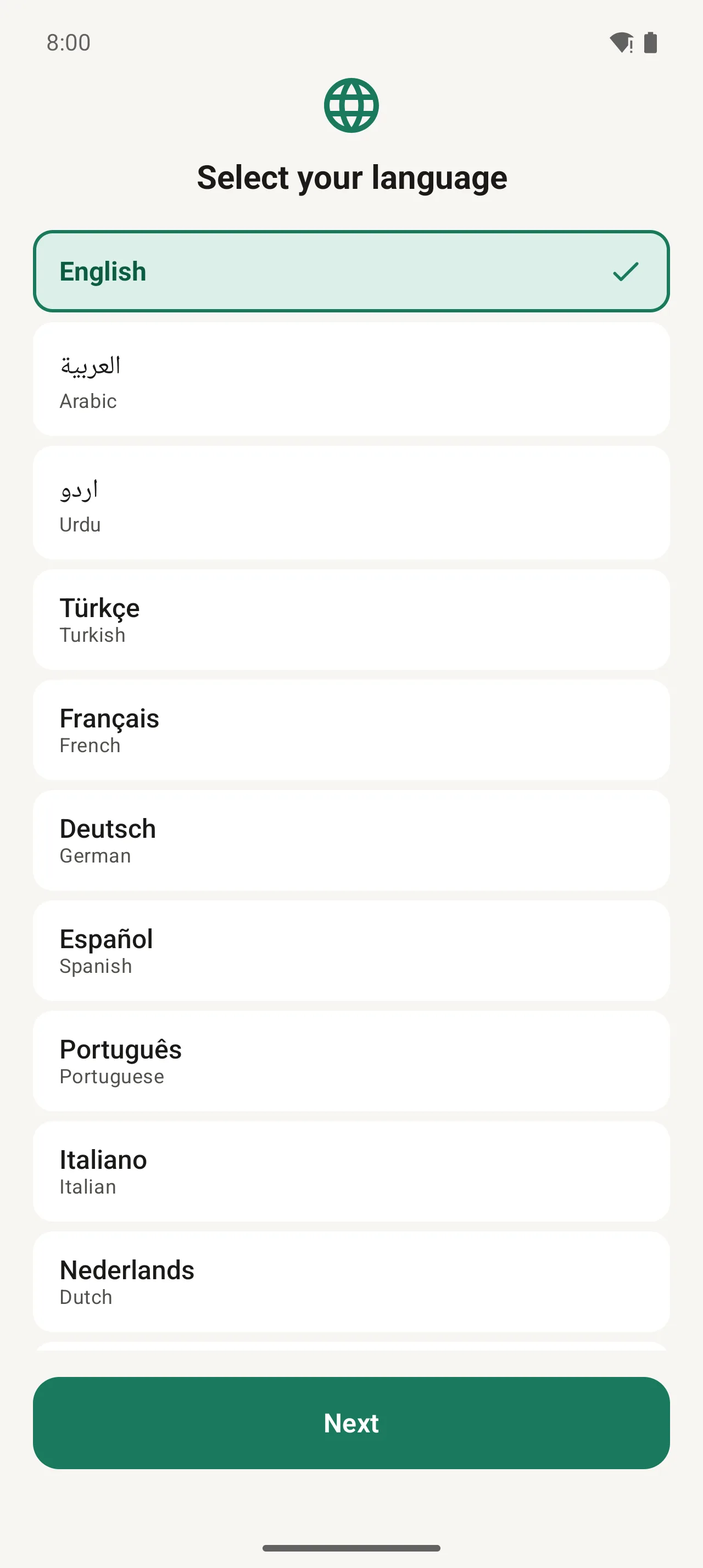
Tap your language, then Next. (Right-to-left scripts like Arabic automatically flip the entire interface.)
Step 3: Sign in to sync
PillDrops uses your account for two things: family sharing and cloud backup. Both are optional — you can skip sign-in and use the app fully offline.
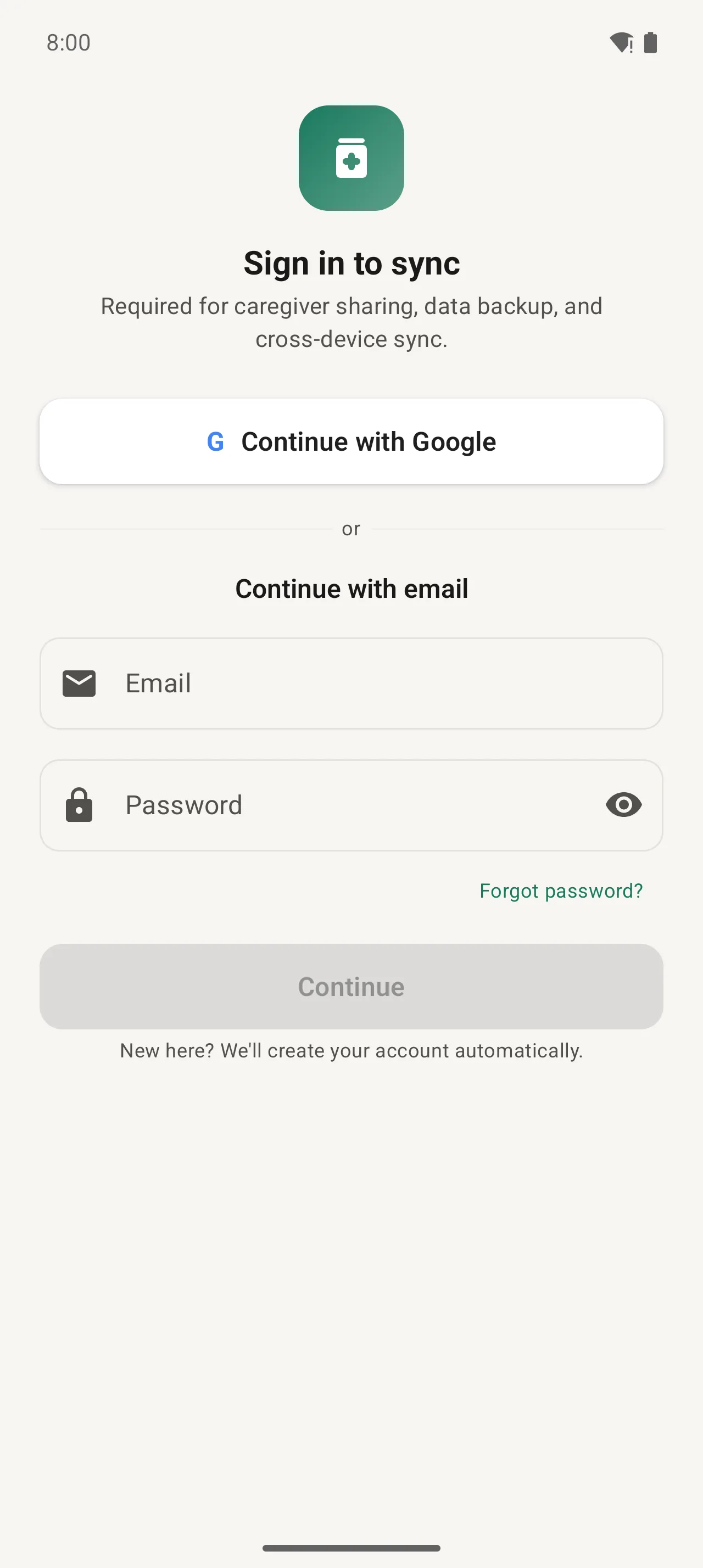
The fastest path is Continue with Google. If you'd rather use email, type your address and password — PillDrops creates the account for you automatically on first sign-in. There's no separate "sign up" page.
Step 4: Choose your role
PillDrops asks what you want to keep on track, then who is using the phone:
- "Just me" — you're tracking your own habits, routines, and reminders. Full Today / list / history view.
- "I help someone else" — you're helping manage someone else's reminders remotely.
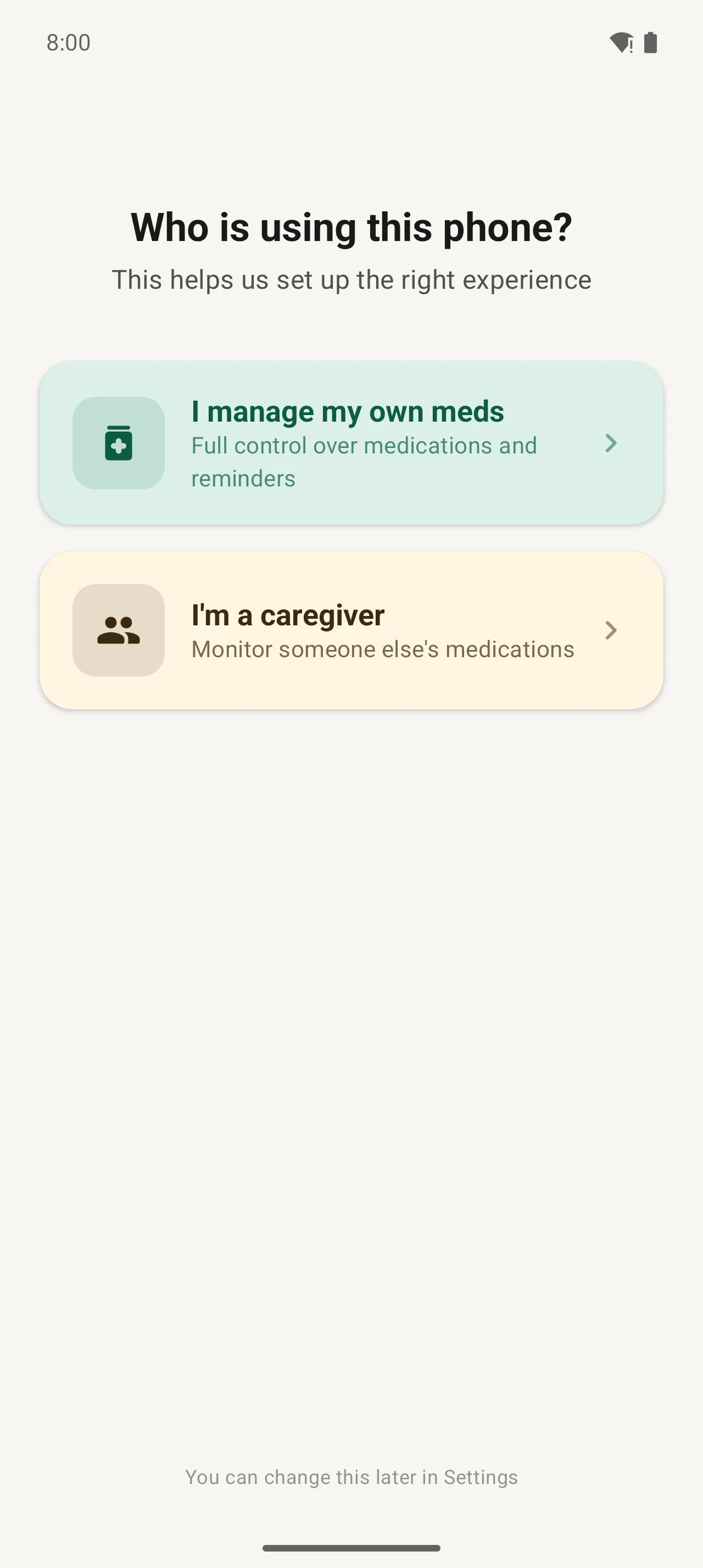
If you're setting up a parent's phone, choose "Just me" on their device, then share with yourself from your own phone (Step 7).
Step 5: Add your first reminder
After a quick intro carousel, you land on the Today screen. Tap the green + button to add your first reminder.
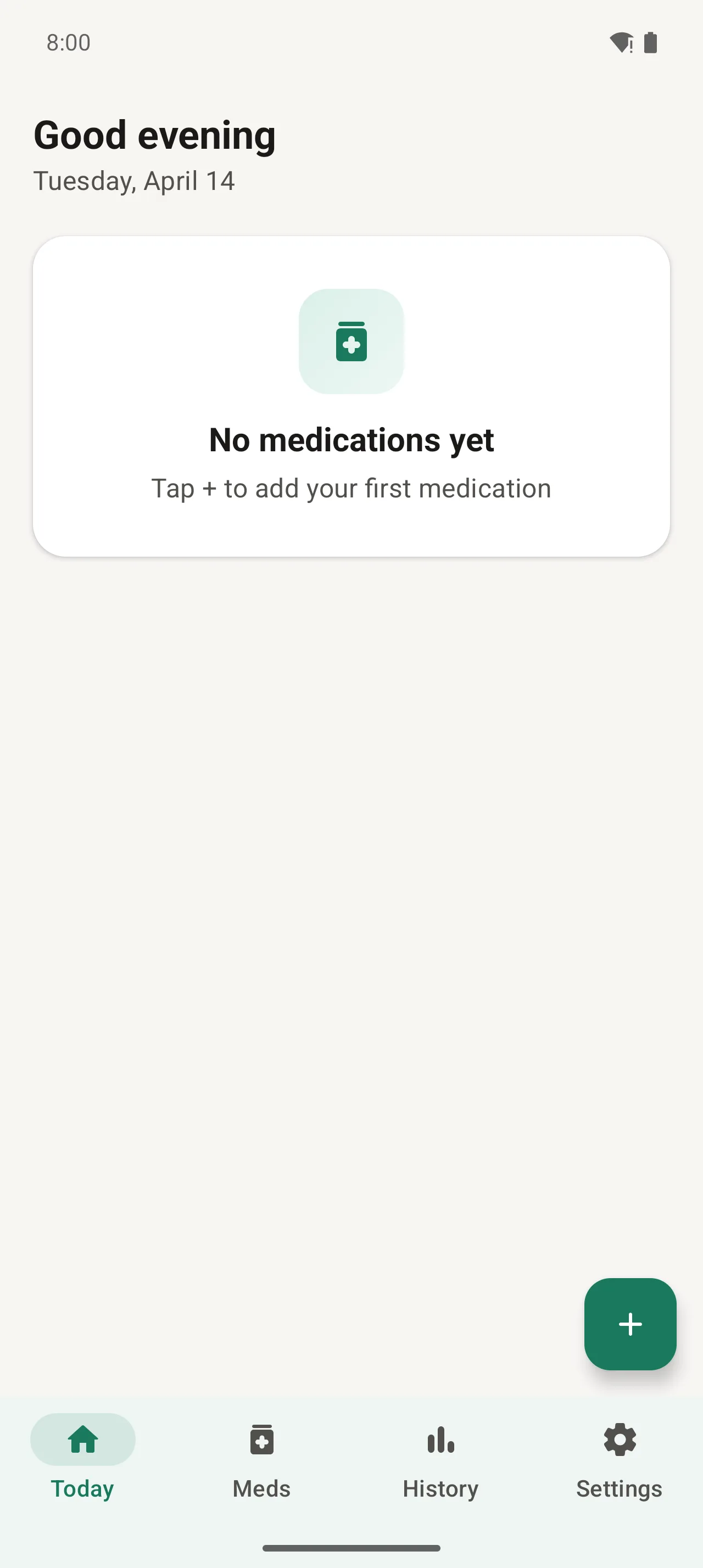
Tap +. The Add form adapts to what you track — for a habit it stays simple (just a name); for a pill or supplement it adds optional dosage, form, and refill fields:
- Name — e.g. "Morning walk", "Drink water", or "Vitamin D"
- Dosage (pills/supplements only) — e.g. "1 tablet" or "1000 IU"
- Form (pills/supplements only) — pill, capsule, liquid, drop, and more
- Color — pick one to color-code the dose card
- Note (optional) — "After breakfast", "Bring shoes", anything that helps
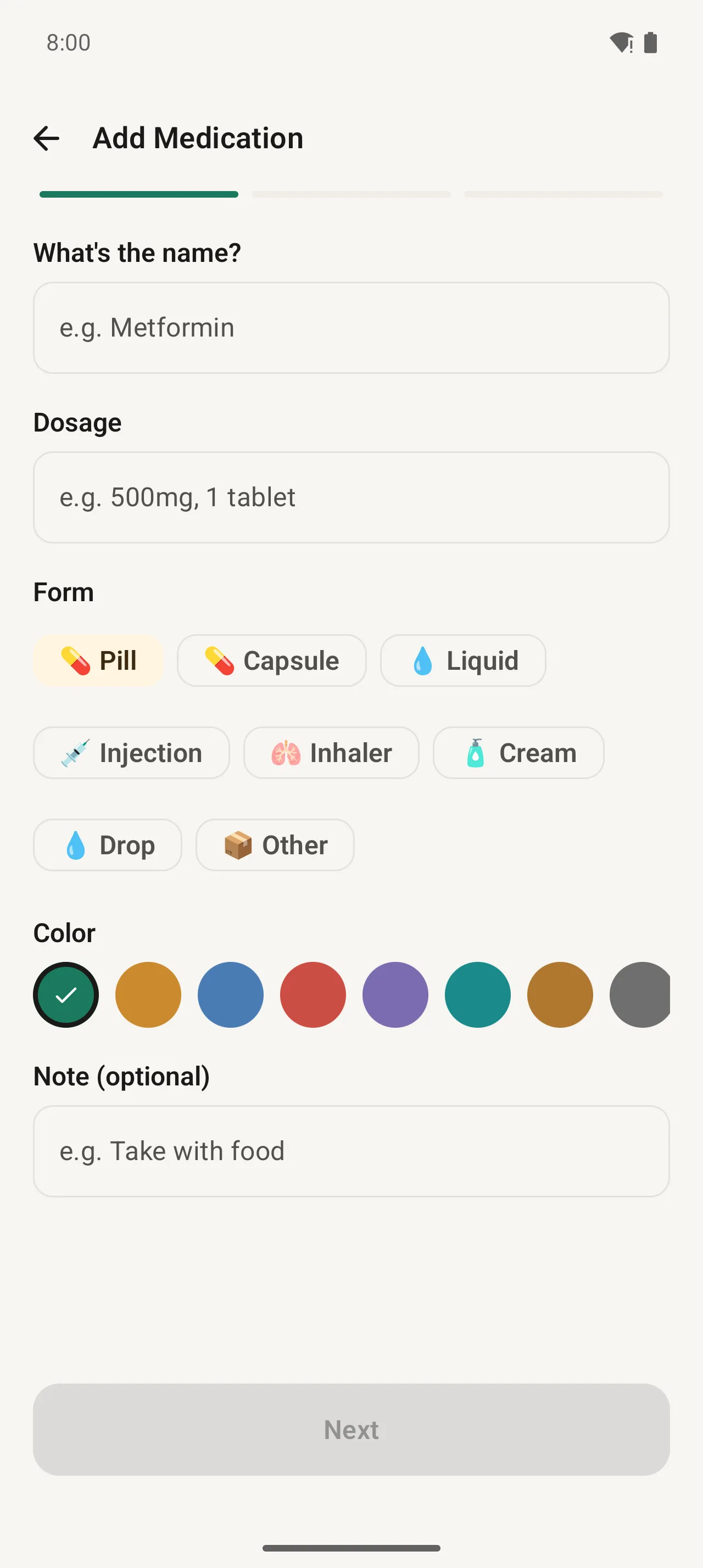
Tap Next. If the Next button is greyed out, you haven't filled in a name yet.
Step 6: Set the alarm time and type
The schedule screen is where PillDrops earns its keep. You'll set:
- Time(s) per day — tap + to add multiple (e.g. 8 AM and 8 PM for twice-daily medications)
- Frequency — every day, specific days of the week, every X days, or as needed
- Alarm type — persistent (rings like a phone call), notification, or gentle nudge
- Stock (pills/supplements only) — current count and refill threshold, so you get warned before you run out.
Why pick "Persistent" alarm
Persistent reminders are the reason PillDrops exists. A regular notification can get buried or silenced; a persistent reminder rings like a phone call until you respond.
Tap Save. The reminder appears on your Today screen, scheduled and armed.
Step 7: Share with family (optional but handy)
If you want a family member to see your reminders — or if you're setting up a parent's phone — sharing connects the two of you in under a minute.
Open the bottom-nav Settings tab. Scroll to Family sharing.
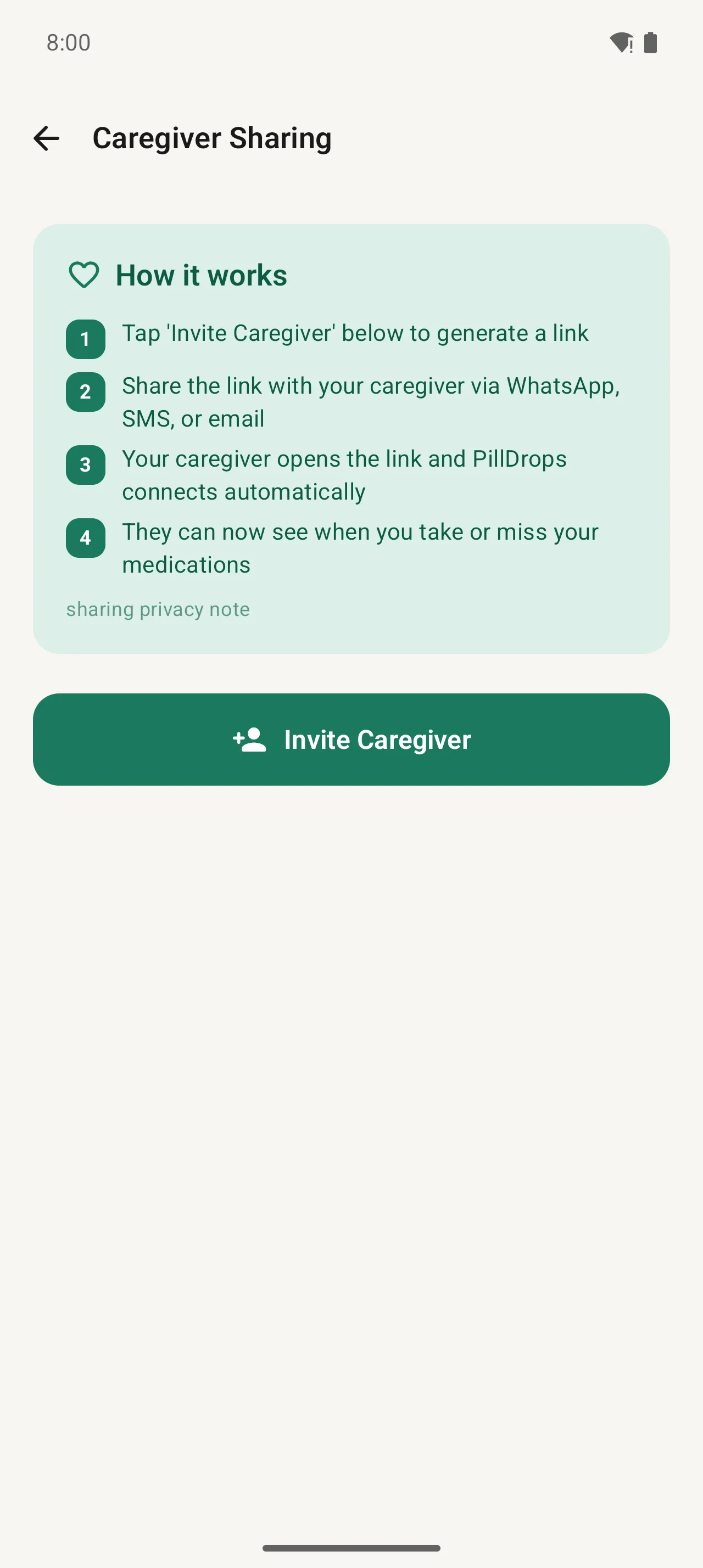
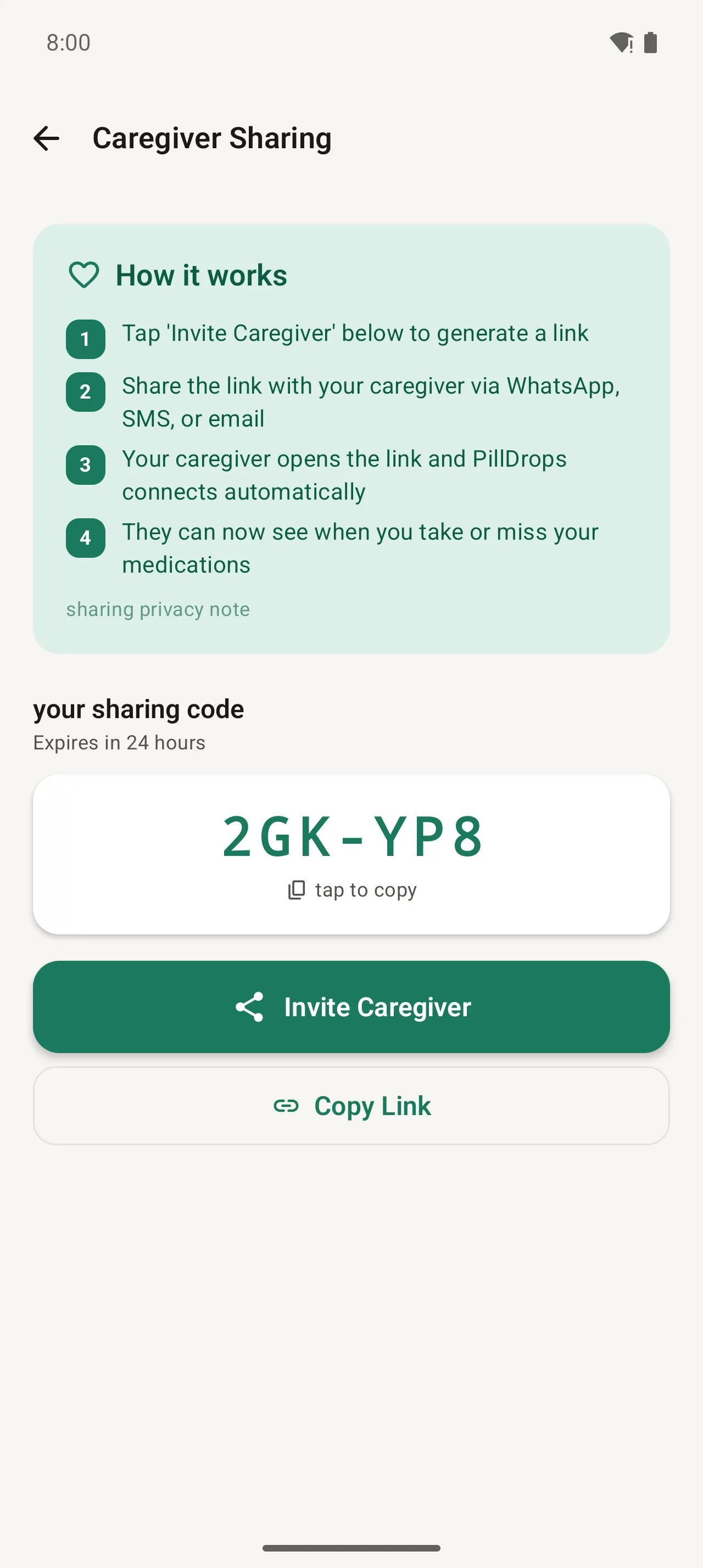
Tap Invite family. PillDrops generates a 6-character code and a link, valid 24 hours.
- Tap the share button to send via WhatsApp, SMS, email, or any installed app
- Tap Copy Link if you want to paste it manually
- Read the code over the phone if they aren't tech-savvy
The person you invite opens the link on any phone. PillDrops connects them automatically — no account needed for a basic view.
Common questions & troubleshooting
"My reminder didn't ring."
Three things to check:
- Notification permission — Settings › Apps › PillDrops › Notifications. Make sure all categories are ON.
- Battery optimization — some Android phones (especially Xiaomi, Oppo, OnePlus) aggressively kill background apps. Find PillDrops in Battery settings and select "Don't optimize" or "Allow background activity".
- Alarm volume — the persistent reminder uses your alarm channel volume. Make sure it isn't at zero.
"How do I change my role later?"
Settings › About › Change role. PillDrops keeps all your data when switching.
"Can the person I share with see my reminders, even without an account?"
Yes, for read-only views. They open the invite link on any browser and see a live list of what's done, upcoming, or missed.
"Is there a free tier?"
Yes — PillDrops Free supports 2 reminders, persistent alarms, history, and basic appointments.
That's the whole setup. From here you should never miss another reminder — habit, routine, or pill.
Next, read our family story to see how sharing works in real life.
Ready to set it up?
PillDrops is free forever for basic use. The Plus plan is $29.99/year — less than a coffee a month.
Download for Android — free